Invite your team
Add people to your store, choose what each one can do, and remove them when they leave.
Getting started · Updated 14 Nov 2026
People on your team sign in with a code sent to their own email, so there's never a password to share.
Invite someone
-
Open Settings › Team.
-
Under Invite someone, enter their email (1) and choose a Role (2).
-
Choose Send invite (3). They get an email with a link to sign in.
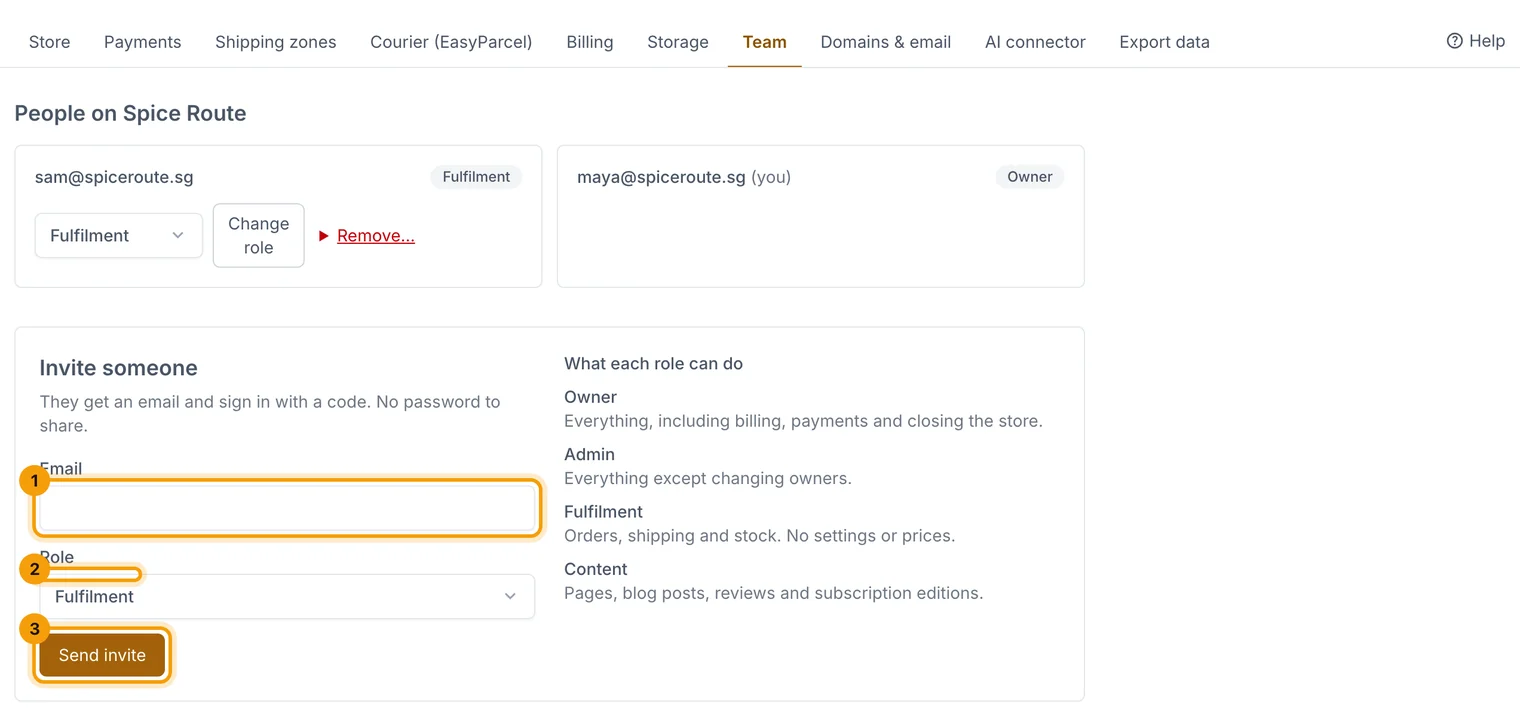
Invite by email and pick a role.
Roles
| Role | Can do |
|---|---|
| Owner | Everything, including billing, payments and removing people |
| Admin | Everything except the owner-only settings |
| Fulfilment | Orders, shipping and stock |
| Content | Pages, blog, menus, reviews, newsletters and SEO |
Change a role or remove someone
- On Settings › Team, find the person under People on your store.
- Pick a new role and choose Change role, or choose Remove… and confirm.
Related guides
- Store settings
Business details, logo, emails, GST, returns, languages, currencies and search settings, one section at a time.
- Connect your store to AI
Ask an AI assistant such as Claude about your orders, stock, customers and sales, read-only and on your terms.
Still stuck? Contact support or email [email protected]. We reply within one business day.