Pack and ship orders
Work through orders to ship, print packing slips, mark orders shipped and send tracking.
Orders · Updated 14 Nov 2026
Paid orders that need posting wait in Orders › To ship, oldest first. Downloads are delivered automatically and never appear there.
Print packing slips
-
Open Orders › To ship.
-
Tick the orders you're packing (1), open the actions menu and choose Print packing slips.
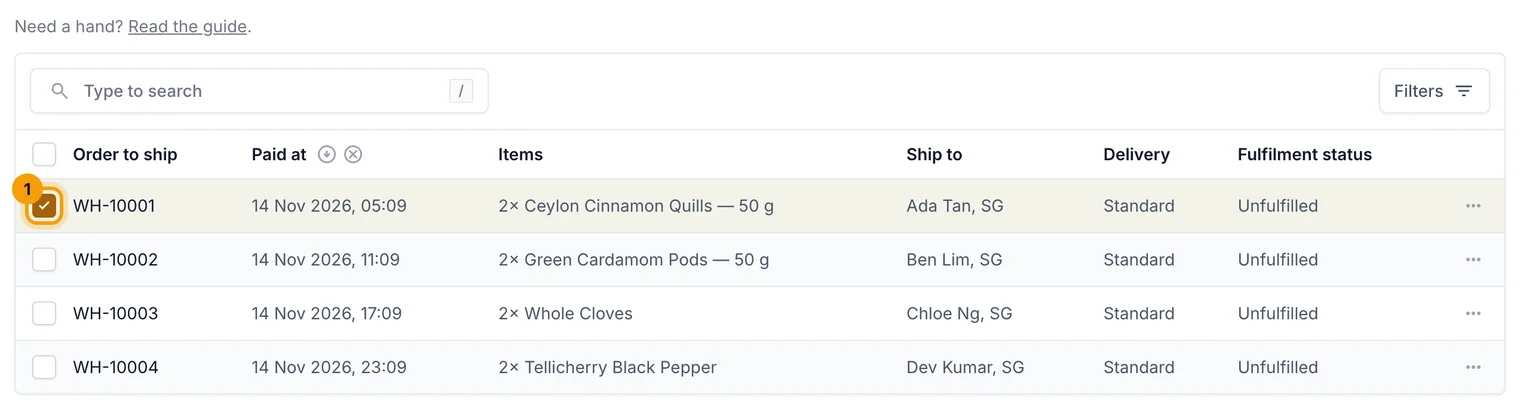
Tick the orders you're packing, then pick an action. -
Print the slips and put one in each parcel. They show what to pack and your returns note.
Mark orders as shipped
-
Open an order (or tick several) and choose Mark as shipped.
-
Pick the Carrier and enter the Tracking number.
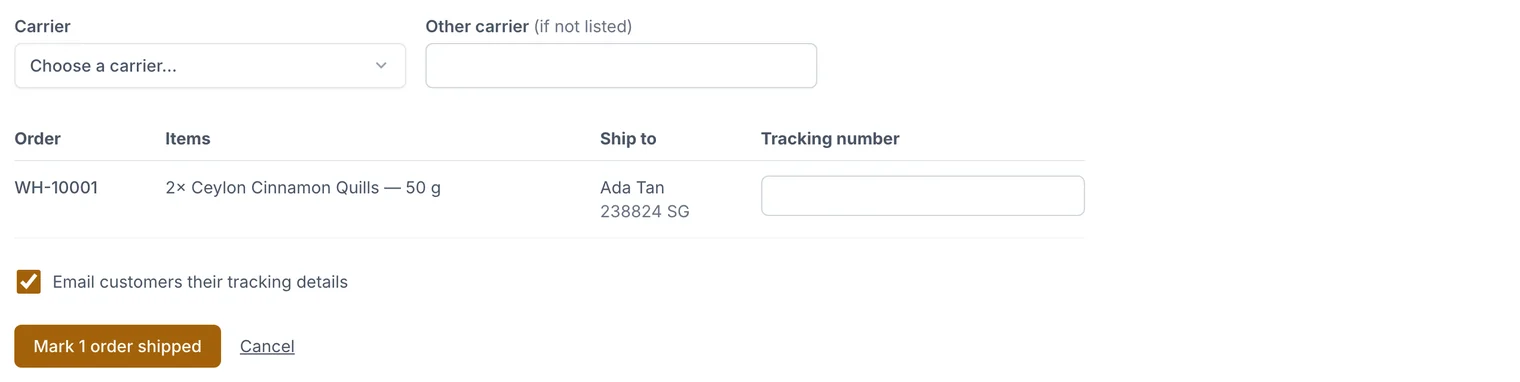
One row per order: carrier and tracking number. -
Save. Each customer gets an email with a tracking link.
Find an order
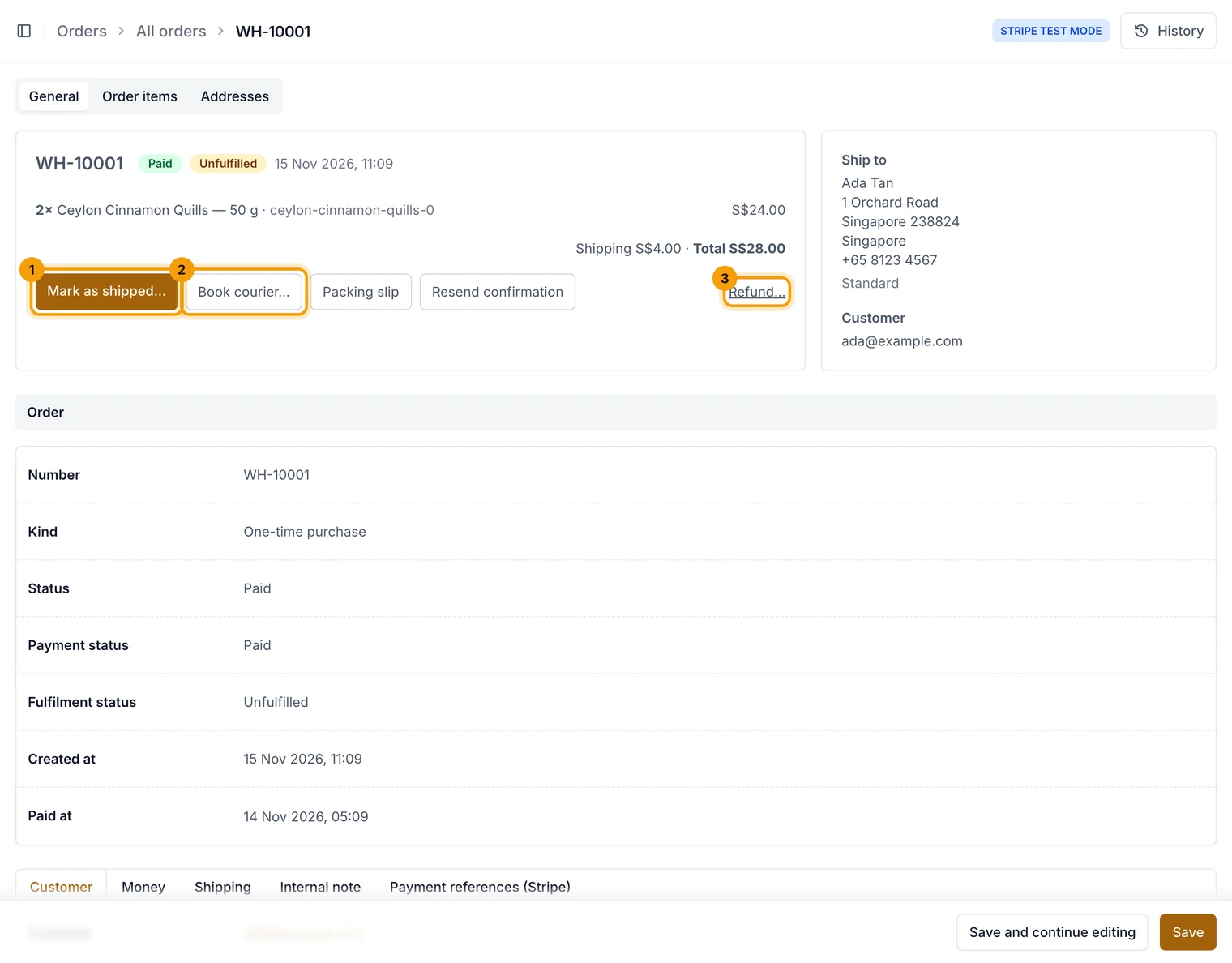
Orders › All orders lists every order. Search by order number, name or email, or filter by status. On an order you can Mark as shipped (1), Book courier (2) or Refund (3).
Related guides
- Your first order, start to finish
What happens when someone buys, and how to pack, ship and follow up.
- Book couriers with EasyParcel
Connect your EasyParcel account, compare couriers and book pickups from an order.
- Refund an order
Give all or part of the money back through Stripe, and choose whether to restock.
Still stuck? Contact support or email [email protected]. We reply within one business day.